I’ve started and stopped creating Lead Forms on and off since they launched. They always fall just short of what’s needed. Can Honeybook make this happen:
Select Service(s) - Ex: 1 or 2 hour sessions
Book a Time - Use the schedule for the service selected
Populate the Invoice & Customize Payment Schedule - Ex: 50% upon submitting form, 50% due on selected project date.
Sign Contract
Pay the first amount from Invoice Payment Schedule
From there the project is created and an automation can be added to continue the flow.
I currently have to funnel a client through a lead form for them to “Book a Time” and then start an automation to send a proposal containing the contract, invoice, and payment (so they can pay a deposit and not the full amount). This process has to be done for each individual service provided, which makes for a LOT of templates and forms and is way more convoluted than it needs to be to automate a booking. I’m just looking to streamline for both myself and my clients.
If there is a better way to do this, please let me know.
Best answer by Matthew Eriksen
Hey @Ruét Photo! HB Pro Matthew here. As a business coach who offers a handful of different sessions myself, I can see how helpful this would be. Let’s see if I can solve this for ya!
But before we do that, you should 100% add the payment schedule feature idea for Lead Forms to the community so we can all upvote it.
Alright so the sad but true reality is that a Lead Form (LF) is designed to be paid in full, similar to buying a product online (no contracts for so your legal info isn’t floating around online, since LFs are public facing). So if you’re looking to sign a contract up front you would still need to initiate an automation for the second half.
However, to make sure folks are paying before a session is blocked on your calendar here is a workaround. While this may not be the 100% ideal option you’re looking for, (as it does require additional steps and templates), let me know if it helps at all:
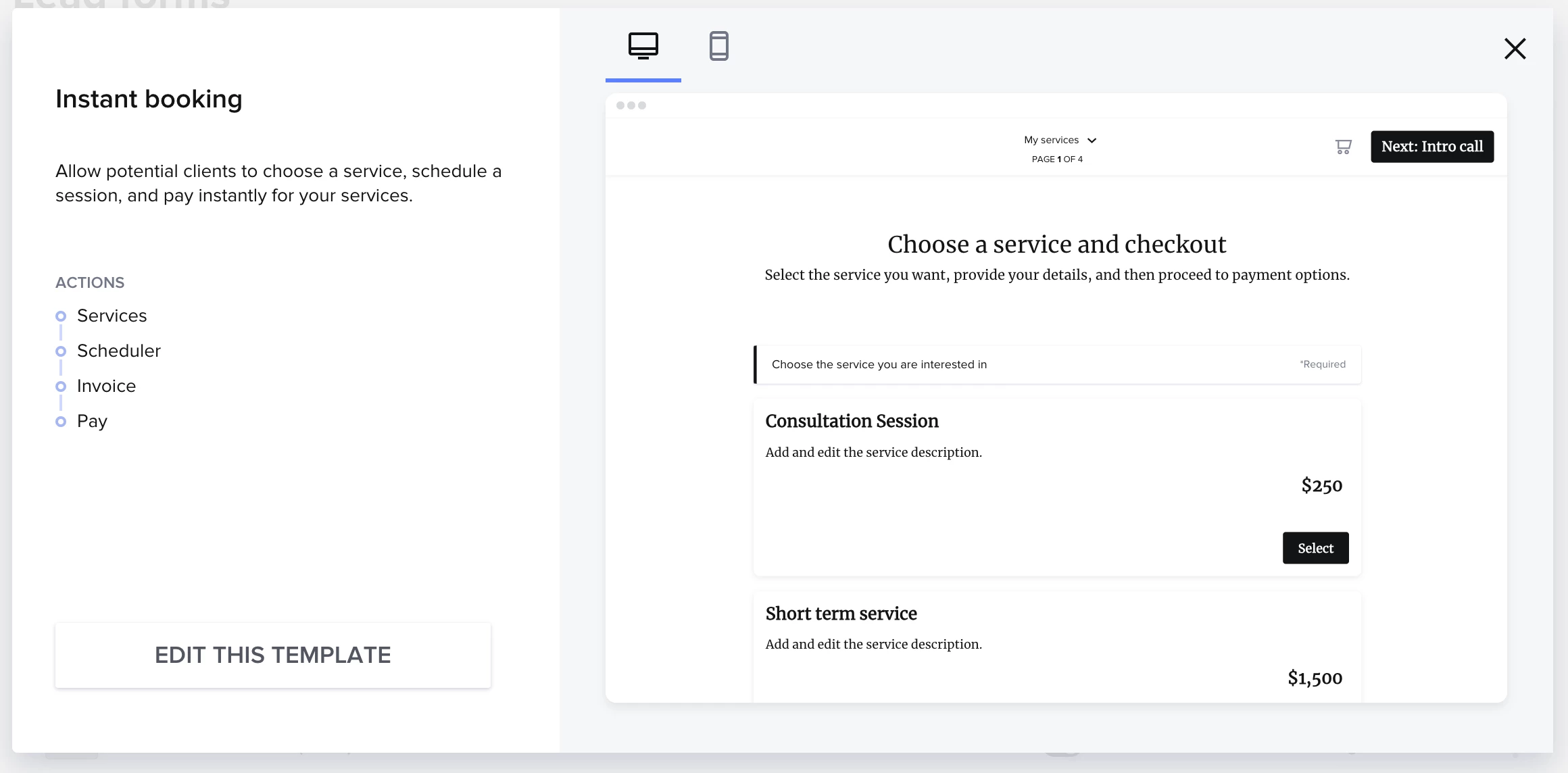
Setup Lead Form as you have done previously (good template for this is Instant Booking shown below):
Service selection - Ex: 1 or 2 hour sessions
Scheduler - Use the scheduler for the service selected
Populate the Invoice
Pay the first amount
Service selection with a session
Ensure your services block in this Smart File has this feature turned onso it connects the line item with session on next page
Also, in Scheduler (Tools > Scheduler), find that session type, and make sure it’s set to ‘Use meeting date as the project date’
Edit prices of the available services to be their deposit value (50%). For example if service X usually totals $100, have the value in this LF be $50 for that line item.
Setup Automations
If you have the new Automations builder you would create an automation initially triggered by ‘Session scheduled’ – more new Automations info here
Once session is scheduled you can automate sending a File via Email for that specific service type, with following considerations:
Invoice for remaining balance of service X
Set payment due date to Project Date (setup in Scheduler)
Contract for service
Payment page for balance (which will send auto reminders to client prior to Project Date)
Let me know if this helps at all, and if not, also tell me, too, ha! Hope you have a great day, @Ruét Photo (and @gregthomasphoto)!
Hey @Ruét Photo! HB Pro Matthew here. As a business coach who offers a handful of different sessions myself, I can see how helpful this would be. Let’s see if I can solve this for ya!
But before we do that, you should 100% add the payment schedule feature idea for Lead Forms to the community so we can all upvote it.
Alright so the sad but true reality is that a Lead Form (LF) is designed to be paid in full, similar to buying a product online (no contracts for so your legal info isn’t floating around online, since LFs are public facing). So if you’re looking to sign a contract up front you would still need to initiate an automation for the second half.
However, to make sure folks are paying before a session is blocked on your calendar here is a workaround. While this may not be the 100% ideal option you’re looking for, (as it does require additional steps and templates), let me know if it helps at all:
Setup Lead Form as you have done previously (good template for this is Instant Booking shown below):
Service selection - Ex: 1 or 2 hour sessions
Scheduler - Use the scheduler for the service selected
Populate the Invoice
Pay the first amount
Service selection with a session
Ensure your services block in this Smart File has this feature turned onso it connects the line item with session on next page
Also, in Scheduler (Tools > Scheduler), find that session type, and make sure it’s set to ‘Use meeting date as the project date’
Edit prices of the available services to be their deposit value (50%). For example if service X usually totals $100, have the value in this LF be $50 for that line item.
Setup Automations
If you have the new Automations builder you would create an automation initially triggered by ‘Session scheduled’ – more new Automations info here
Once session is scheduled you can automate sending a File via Email for that specific service type, with following considerations:
Invoice for remaining balance of service X
Set payment due date to Project Date (setup in Scheduler)
Contract for service
Payment page for balance (which will send auto reminders to client prior to Project Date)
Let me know if this helps at all, and if not, also tell me, too, ha! Hope you have a great day, @Ruét Photo (and @gregthomasphoto)!