


Question

Sending Proposals and or Invoices

  • March 13, 2024
  • 4 replies
  • 37 views

Lauren

Hi There,

I’m new to Honeybooks and feeling my way around. When I’ve created a proposal or invoice they seeme to be attached to a 5 page contract, payment page etc. 

Is there a way to send a proposal or invoice as one page by themselves? 

Thanks in advance!

4 replies

Masha Z
HoneyBook Employee
Forum|alt.badge.img+1
  • HoneyBook Employee
  • March 14, 2024

Hi @Lauren, of course!


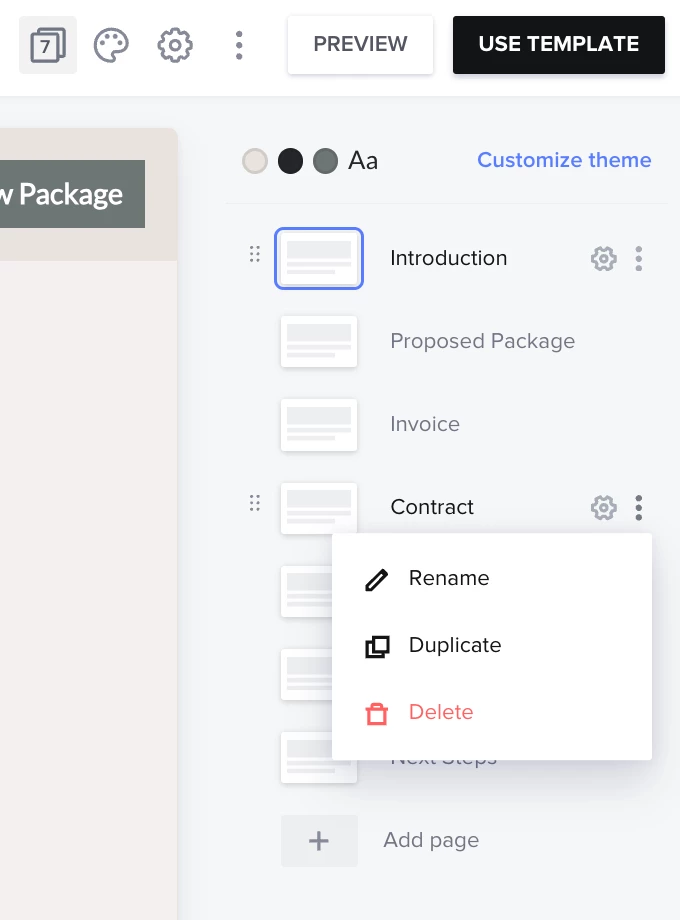
You’re probably using a template that had all of those pages created already. To delete them, simply close out the menu in the side bar - that will open a page index for this file. Click 3 dots next to the page that you want to delete and press “Delete”. Attaching a screenshot of what that index view looks like below!


You can use that area to manage your pages: delete, rename, duplicate, reorder - or add new ones.

The cool thing about smart files is that you can reuse page templates in other templates, so if you press “Add page”, it will give you an option of adding a blank page or select a page from an existing template.


Let me know if this helps resolve your issue!


Lauren
  • Author
  • March 15, 2024

Hi Masha,

Thanks so much for this! It was very helpful. I’ve created a new project with a client but how do I connect the updated proposal of one page with that client?


kitzzy
HoneyBook Employee
Forum|alt.badge.img+1
  • HoneyBook Employee
  • March 18, 2024

Hi Lauren,

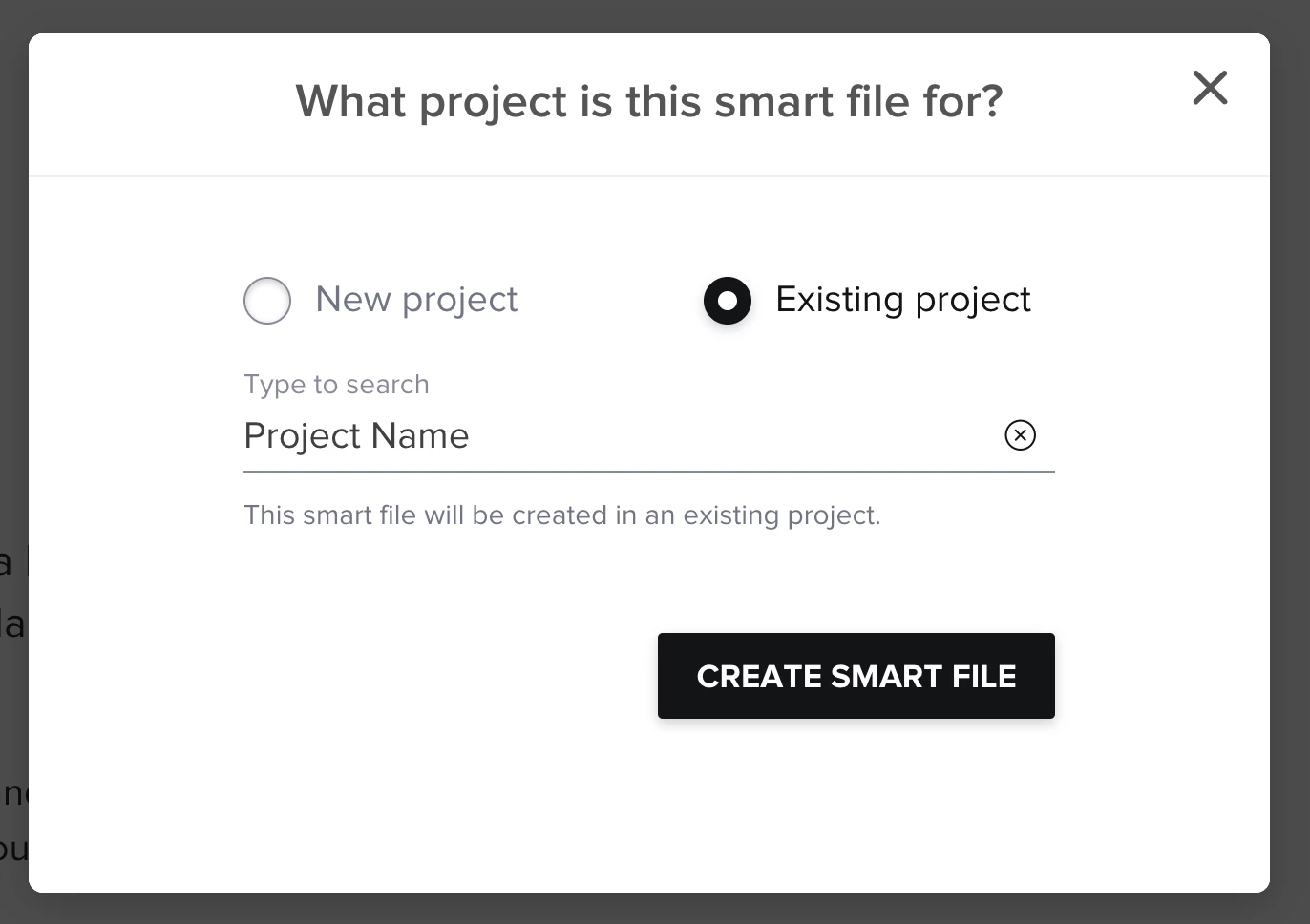
Glad that Masha’s suggestion worked for you. Once you have created the template, you’ll want to go to the template and click the “USE TEMPLATE” button on the top right (see screenshot in Masha’s post). This will then prompt you to enter a project where you can select Existing Project and choose the project you created, then click the “CREATE SMART FILE” button. At that point you can further customize it if needed then send it. 

Give a try and let us know how it goes!

Kitzzy


Lauren
  • Author
  • March 19, 2024

Thanks so much Kitzzy!

This is helpful also. I’m slowly muddling through!