



Question

Adding only specific dates and time slots to scheduler availability?

  • June 15, 2026
  • 3 replies
  • 34 views

Mallisa Mott

I have tried to find answer regarding this specific situation but I haven't been able to find any.

I’m a photographer and REALLY want to utilize the scheduler to fully automate my onboarding for clients. I have very limited and differing availability (like only certain days based family schedules, etc...) and I need to be able to add specific dates and time slots ONLY as my availability.


Right now I am only seeing the option to open up all days and add exceptions:
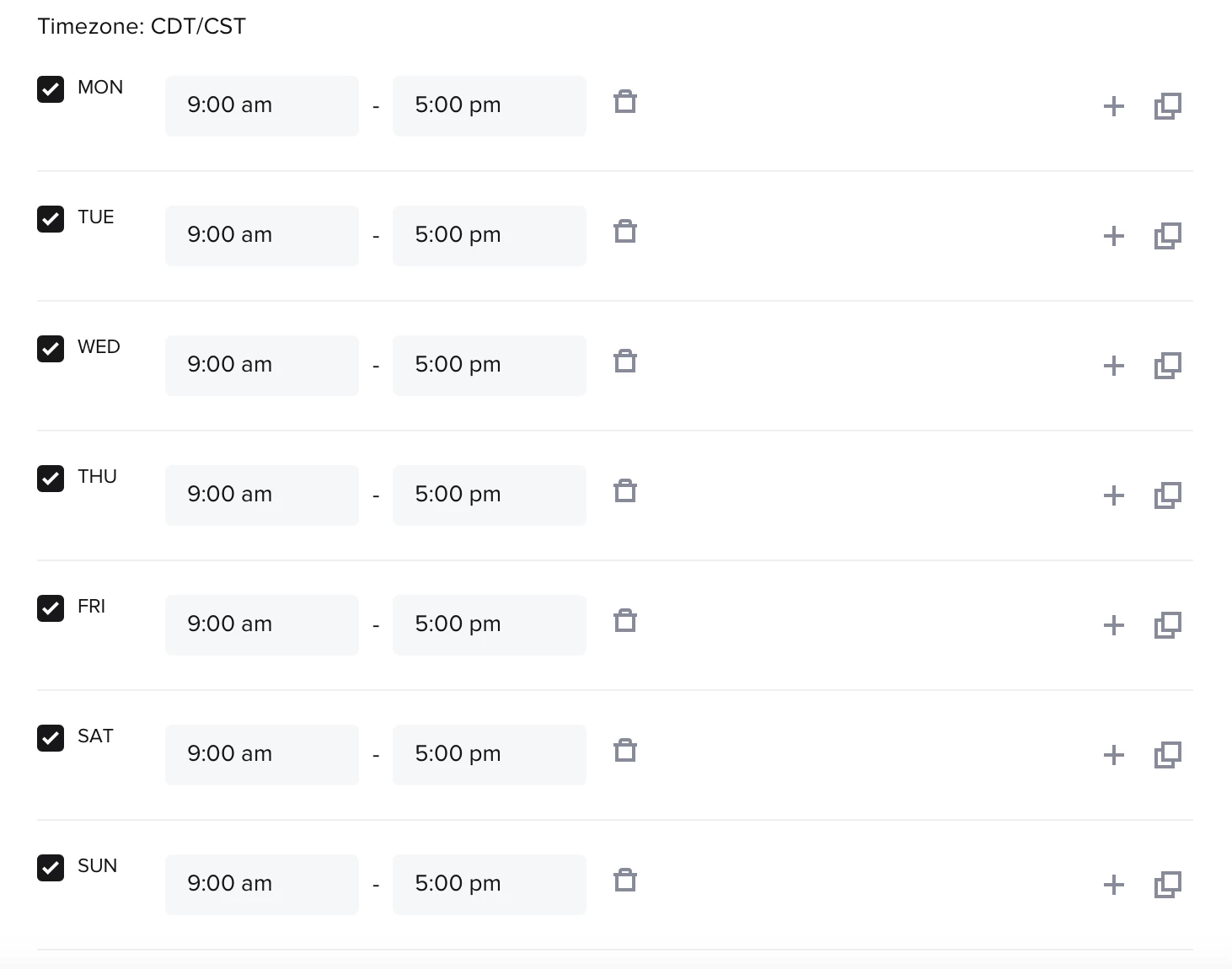
 

Is there a way to offer only specific dates and time slots? Even if I have to go in and manually add them every so often?


3 replies

Kaitlyn Blair
Luminary
Forum|alt.badge.img+1

Hey ​@Mallisa Mott!


Yes there is a way to totally customize the scheduler! If you click the trash can next to the time (9:00-5:00), that will delete the availability for the day. So if you wanted to, you could make only Tuesday your call days, for example!


You can also click the 9:00am & 5:00pm time and adjust the times, so can totally customize the time slots available. If you click the “+” to the right, you can even add an additional time.


So for example:

Mondays, no calls

Tuesdays, no calls

Wednesdays, available for calls 10:00am - 12:00pm, as well as 2:00pm - 7:00pm

Thursdays, no calls

Fridays, no calls

Saturdays, no calls

Sundays, no calls


I’d recommend integrating with your calendar if you use it! So a Google Calendar or your Apple Calendar. Then, HoneyBook will sync with your calendar, and block off any dates and times that you put on your Google or Apple calendar! You won’t need to go back and forth in the HoneyBook scheduler.


Does that answer your question?


Sena
HoneyBook Employee
  • HoneyBook Employee
  • June 18, 2026

@Mallisa Mott It looks like Kaitlyn provided a great suggestion, but if you need any further assistance, please let me know and I can reach out to you directly via email 🙂


Lydia F
Explorer
  • Explorer
  • July 1, 2026

@Mallisa Mott  I understood your question a little differently, esp as a photographer who is dealing with this same pain point! Here’s how I do it. 

  1. I “trash” all of the time blocks on the days of the week that are automatically included. 
  2. Then I go down to DATE OVERRIDES and I add my available dates/times manually, day by day.

It’s not ideal, but it’s the way I have to do it to manage my calendar. I know I could use my Google calendar to manage it that way, but it’s a LOT easier for me to enter the dates/times I am available versus the other way around. Maybe the same is true for you!