

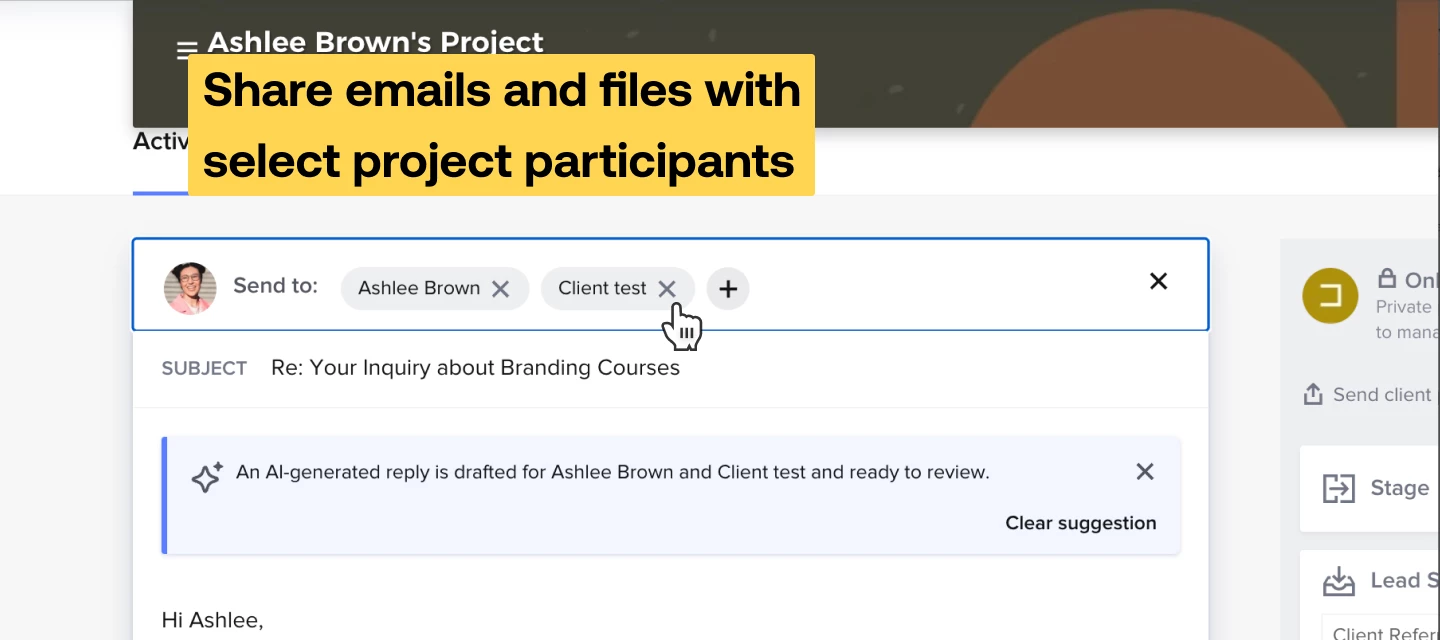



Now, you can select which project participants receive your emails and have access to files. You’ll be able to choose (add, remove, or keep as-is) recipients directly from the email composer and file sharing modals, improving project efficiency and ensuring that only relevant stakeholders have access to critical information.
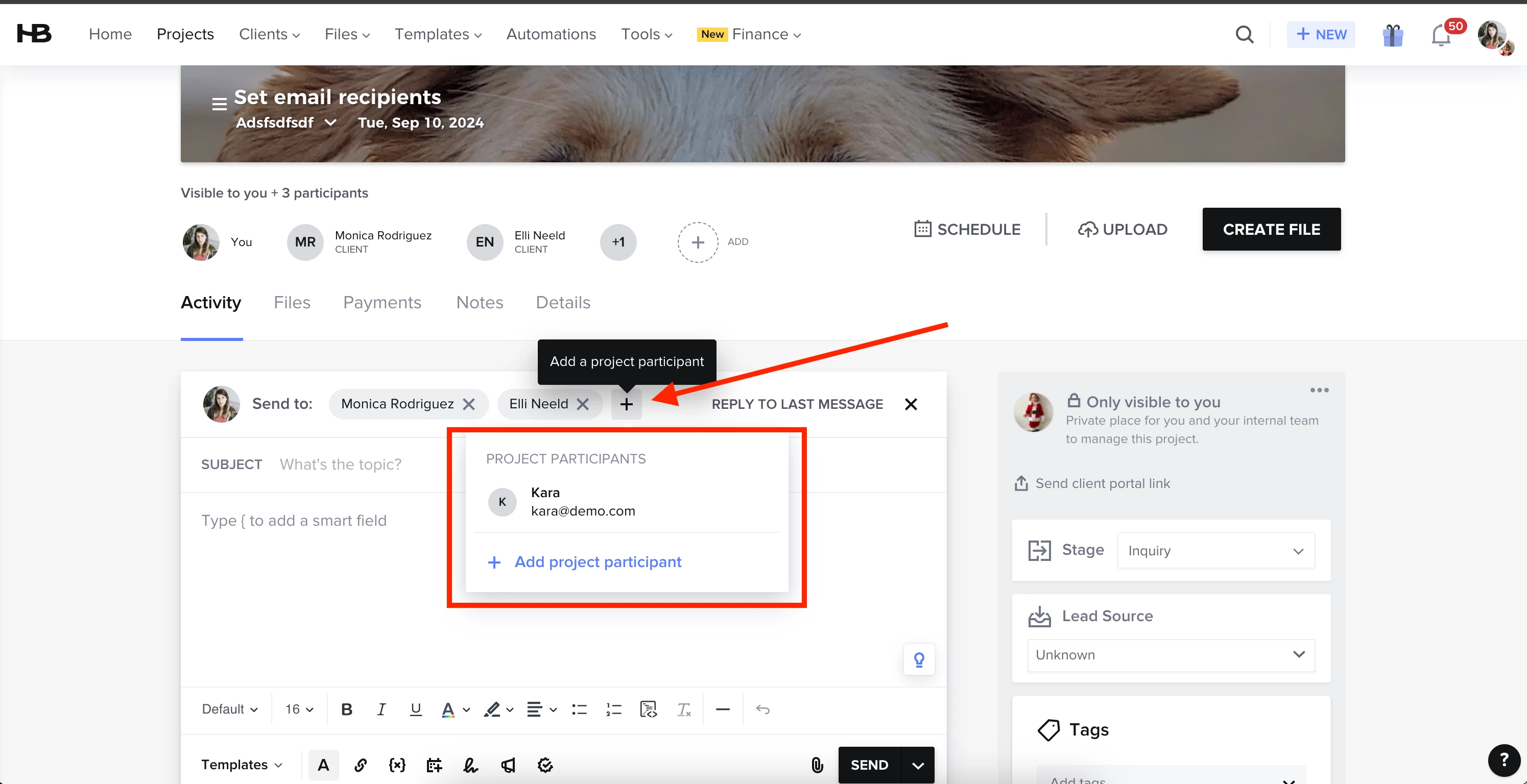
By default, the recipient list is auto-populated with all project participants. You can edit this list by removing or adding recipients. Recipients can be added by selecting recipients out of the project participants list or creating new contacts.
Only the selected recipients will see the email in the feed. Also, each email from now will be sent with a disclaimer indicating who else received the email.

Past Communication: If a user joins a project after it starts, they will not see past communications.
In this first image, you can see that all project participants are recipients of the email.
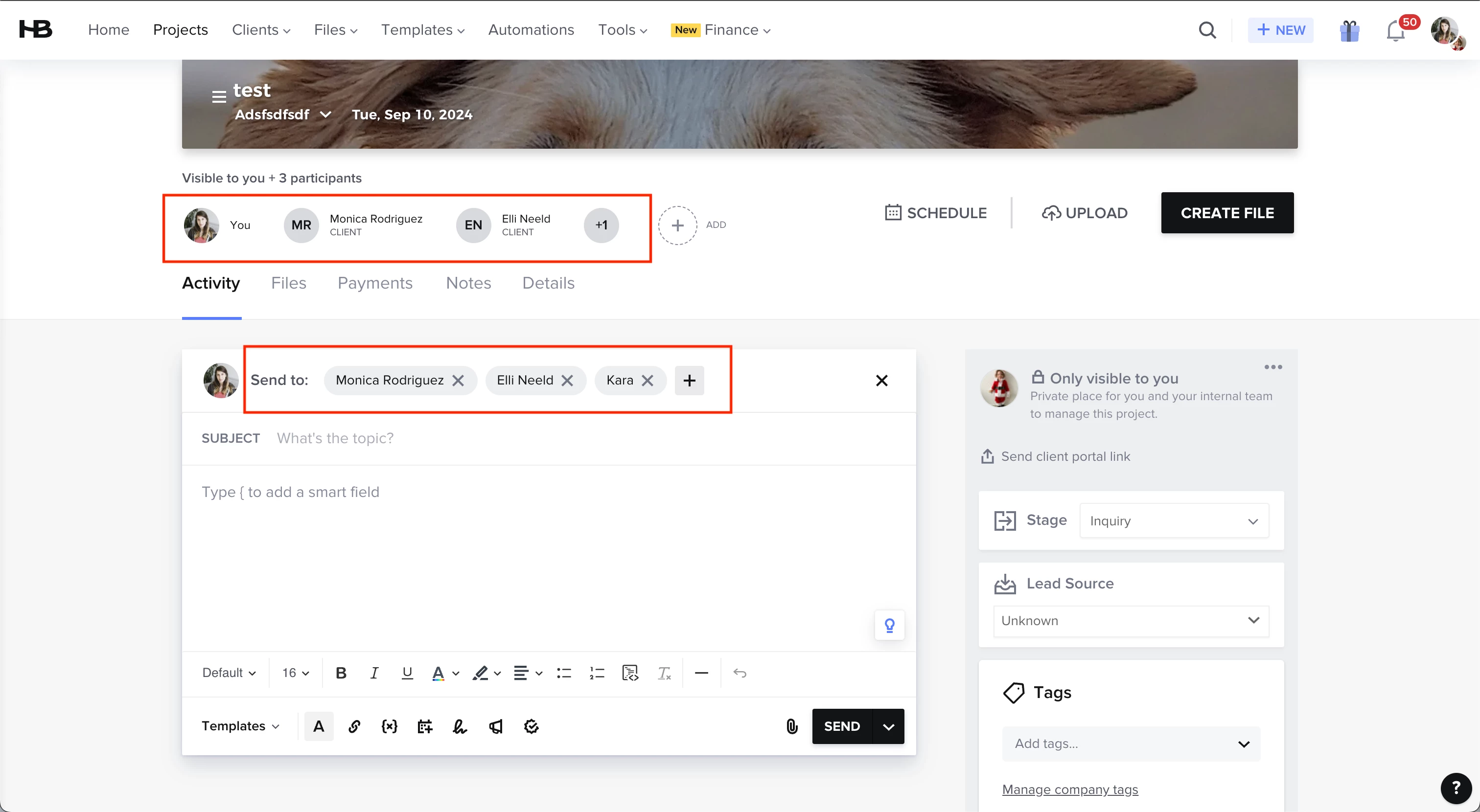
Using selective communication allows you to remove participants from the recipient line of an email. In this example, we removed Kara as a recipient.
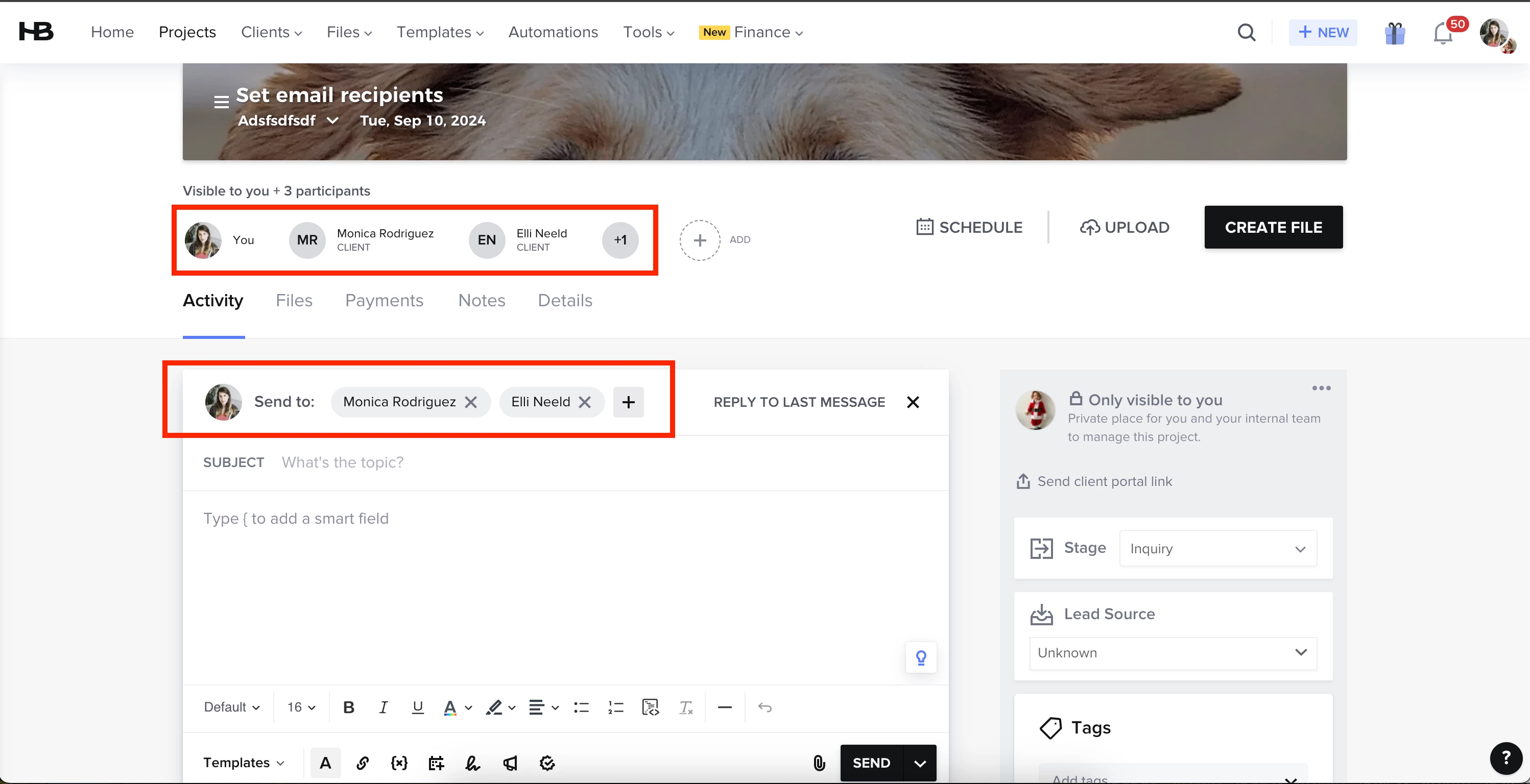
You can always add a participant back to an email if you so choose.
Selective Communication When Sharing a File
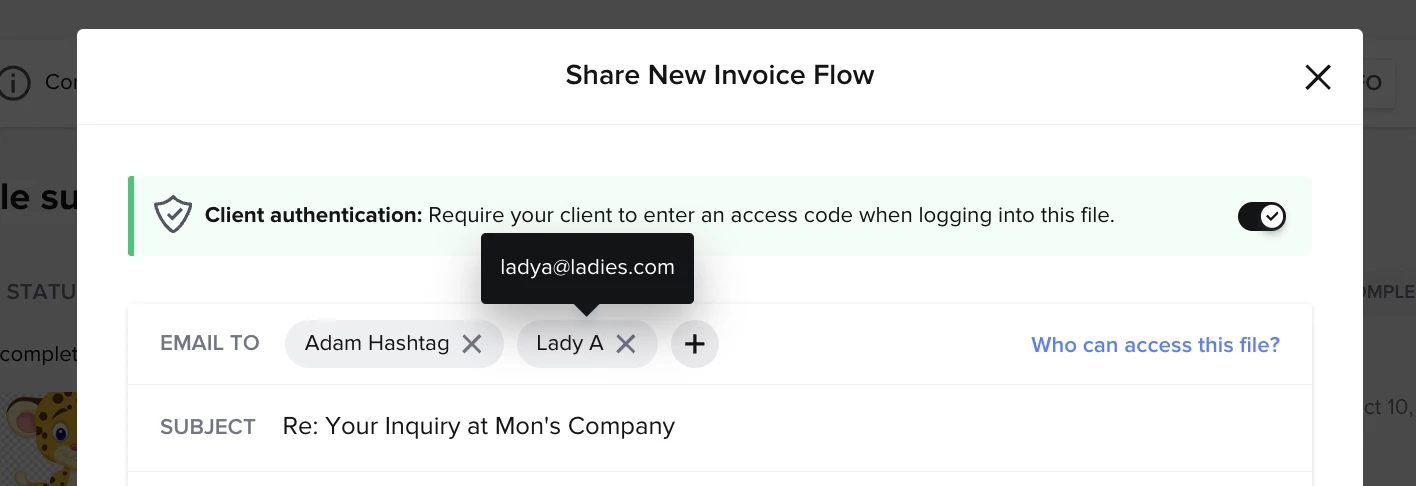
You can also now select specific recipients when sharing files from within a project. This ensures that only the intended participants are notified and granted access to the shared file.
By default, files shared within the project will be accessible to all project participants. However, you can now edit this list to select only certain participants to notify and grant access to the file. New contacts can also be added if necessary.
Only the selected participants will be notified of the file share and given access to the file.
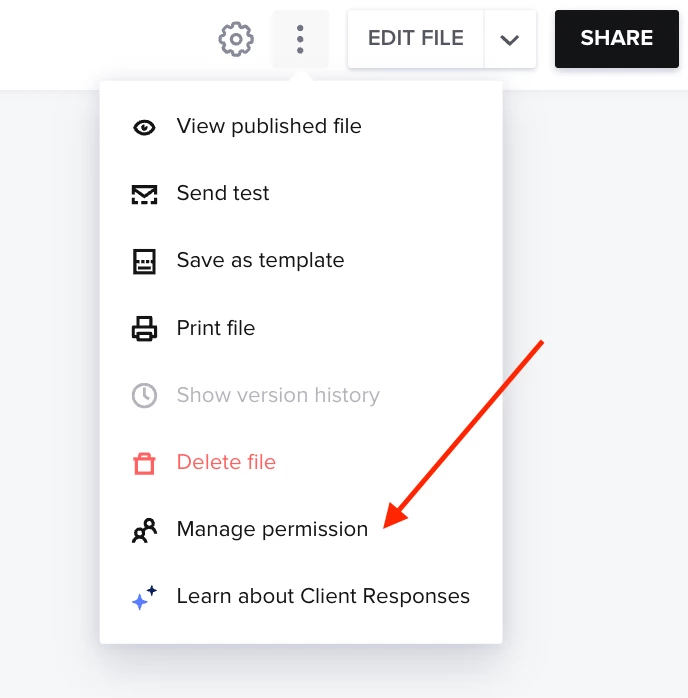
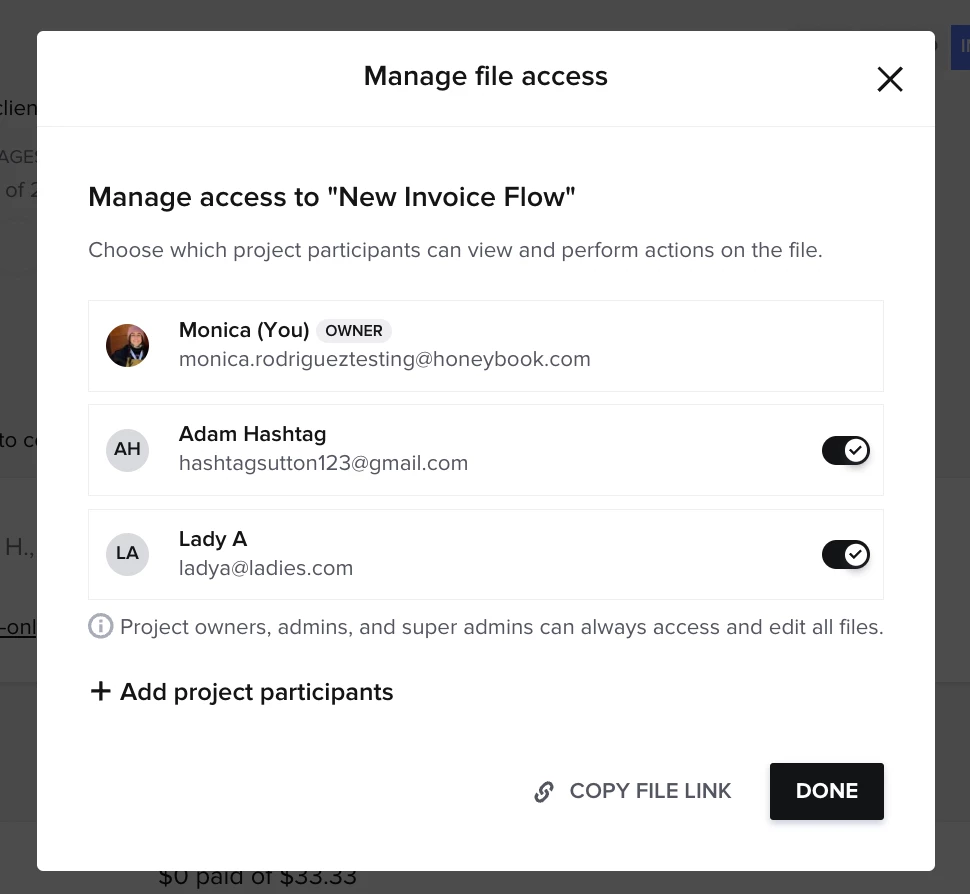
File Access Permissions
You can now control file access permissions by specifying which participants from the project will have edit/action permissions! This ensures that only the selected recipients can make changes to or act on the file.